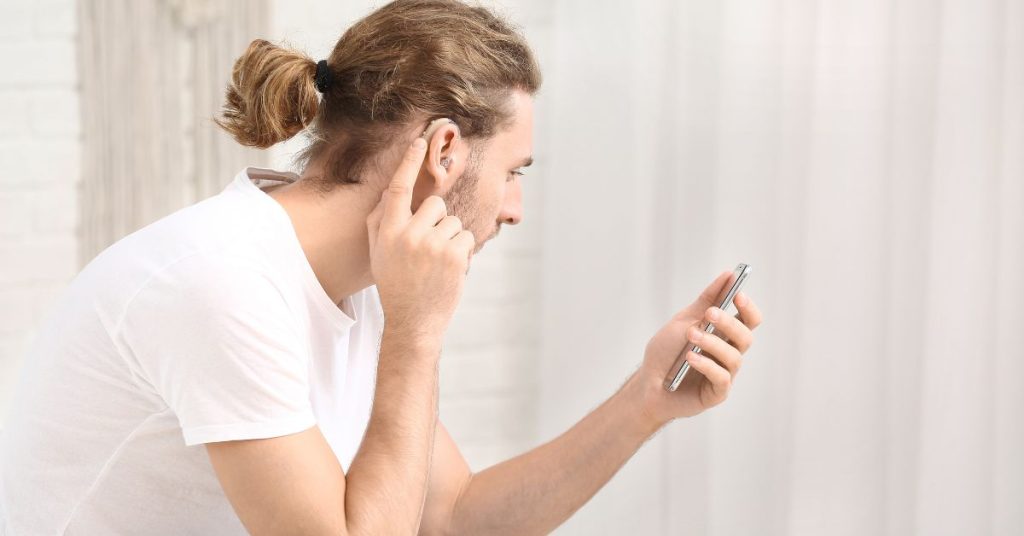
Connecting your hearing aids to your smartphone can transform the way you experience sound, communication, and everyday convenience. For adults living with hearing loss, smartphones are more than just communication tools—they can be personal assistive devices when paired with hearing aids. By linking your hearing aids to your phone, you can enjoy hands-free phone calls, stream music and podcasts directly to your ears, and even use apps that help fine-tune sound settings for different environments.
For many, the idea of connecting technology can feel daunting, especially if you’re not familiar with Bluetooth or smartphone settings. However, the process is often straightforward, and once set up, it opens up a world of possibilities for enhanced hearing and greater independence. This guide is designed to walk you through every step, from checking compatibility to troubleshooting common issues, ensuring that your hearing aids and phone work seamlessly together.
Beyond convenience, connecting your hearing aids to your phone can also improve safety and social interaction. For example, you can hear notifications, alarms, and conversations more clearly without straining your ears, making everyday life less stressful and more enjoyable. Whether you’re an iPhone user, an Android enthusiast, or a caregiver helping someone with hearing loss, this guide provides all the information you need to get started confidently.
Understanding Your Hearing Aid and Smartphone Compatibility
Before you attempt to connect your hearing aids to your phone, it’s important to understand whether your devices are compatible. Hearing aids vary widely in technology, and not all are designed to pair directly with smartphones. Knowing the type of hearing aid you have and the capabilities of your phone will save time and prevent frustration.
Types of Hearing Aids
1. Bluetooth-Enabled Hearing Aids
Many modern hearing aids come with built-in Bluetooth, allowing them to connect directly to smartphones, tablets, and even computers. These devices often advertise themselves as “Made for iPhone” or “Made for Android,” indicating their compatibility with specific platforms. Bluetooth-enabled hearing aids are typically the easiest to pair and offer the best sound quality for phone calls and media streaming.
2. Made for iPhone (MFi) Hearing Aids
Apple’s “Made for iPhone” hearing aids are designed to work seamlessly with iOS devices. They allow direct streaming of phone calls, music, and notifications without needing additional adapters. Some MFi hearing aids also integrate with the iPhone’s accessibility settings, providing extra control over volume and program adjustments.
3. Android-Compatible Hearing Aids
Android devices vary more widely than iPhones, which can affect hearing aid compatibility. Some Android-compatible hearing aids connect directly via Bluetooth, while others may require the manufacturer’s app to facilitate the connection. It’s essential to check your hearing aid manufacturer’s guidelines for the recommended Android models.
4. Traditional Hearing Aids with Accessories
Older or non-Bluetooth hearing aids may not connect directly to smartphones. However, you can often use streaming accessories, such as a neck loop or a small Bluetooth streamer, to link your hearing aids to your phone. These accessories act as intermediaries, transmitting audio from your phone to your hearing aids.
Why Compatibility Matters
Ensuring compatibility is crucial for a stable connection and clear audio. Incompatible devices may fail to pair, produce distorted sound, or drain your hearing aid batteries quickly. By confirming compatibility first, you can avoid common frustration and enjoy a smoother experience with your smartphone.
Quick Compatibility Checklist
Check your hearing aid model and manufacturer.
Verify if it supports direct Bluetooth pairing or requires an app.
Confirm your smartphone’s operating system is supported.
Ensure both devices are updated with the latest software or firmware.
Preparing Your Devices for Connection
Once you’ve confirmed that your hearing aids and smartphone are compatible, the next step is preparation. Proper preparation ensures a smooth pairing process and reduces the risk of connection issues or frustration. This section walks you through the steps to get both your hearing aids and phone ready.
Charge Your Devices
Before attempting to pair, make sure both your hearing aids and smartphone are fully charged. Low battery levels can interfere with Bluetooth connections and may cause the pairing process to fail. For rechargeable hearing aids, place them on their charging dock and wait until they reach a full charge. If your hearing aids use disposable batteries, check that they are fresh and properly inserted.
Update Software and Firmware
Technology is constantly improving, and both hearing aids and smartphones receive updates to enhance performance and compatibility.
Smartphone updates: Check your phone’s settings to ensure it has the latest iOS or Android updates installed. These updates often fix bugs and improve Bluetooth functionality.
Hearing aid firmware updates: Many modern hearing aids can be updated through the manufacturer’s app or at your audiologist’s office. Keeping firmware current ensures that your hearing aids are optimized for smartphone connectivity.
Enable Bluetooth
Bluetooth must be turned on for your phone to detect and connect to hearing aids. On iPhones, go to Settings > Bluetooth and toggle it on. On Android phones, the path may vary slightly but is usually found under Settings > Connections > Bluetooth. Once Bluetooth is active, your phone is ready to search for nearby devices.
Minimize Interference
Bluetooth connections can be disrupted by other wireless devices or crowded environments. To improve your chances of a smooth pairing:
Move away from Wi-Fi routers, microwaves, and other Bluetooth devices during setup.
Keep your hearing aids close to your phone during the pairing process.
Turn off or temporarily disconnect other Bluetooth devices that may be nearby.
Restart Devices
Sometimes, a quick restart of both your phone and hearing aids can resolve minor connectivity glitches. Power off your smartphone, wait a few seconds, and turn it back on. Do the same for your hearing aids if possible.
Step-by-Step Pairing Process
Now that your devices are fully prepared, it’s time to connect your hearing aids to your smartphone. The process varies slightly depending on whether you’re using an iPhone or an Android device. Follow these step-by-step instructions to ensure a smooth connection.
Pairing with an iPhone
Open Settings: On your iPhone, go to Settings > Accessibility > Hearing Devices.
Enable Bluetooth: Ensure Bluetooth is turned on. Your iPhone will automatically start searching for compatible hearing aids.
Activate Pairing Mode on Your Hearing Aids: Follow your manufacturer’s instructions to put your hearing aids into pairing mode. This usually involves opening and closing the battery doors or pressing a button on the device.
Select Your Hearing Aids: Once your iPhone detects your hearing aids, their name will appear on the screen. Tap to select them.
Confirm Pairing: Your iPhone may display a pairing request; confirm it. You might also hear a tone in your hearing aids signaling a successful connection.
Test the Connection: Make a test call or play music to ensure audio streams directly to your hearing aids.
Pairing with an Android Device
Open Settings: Go to Settings > Connections > Bluetooth on your Android phone.
Enable Bluetooth: Turn Bluetooth on so your phone can detect nearby devices.
Activate Pairing Mode on Your Hearing Aids: Refer to your manufacturer’s instructions to enable pairing mode.
Scan for Devices: In the Bluetooth settings, tap Scan or Pair new device. Your hearing aids should appear in the list of available devices.
Select Your Hearing Aids: Tap the name of your hearing aids to start the connection process.
Confirm Pairing: Accept any prompts or pairing requests on your phone. You may hear a tone or notification in your hearing aids.
Test the Connection: Play music, watch a video, or make a call to ensure the audio streams correctly.
Using Manufacturer Apps
Many hearing aid brands offer companion apps for iOS and Android. These apps can simplify the pairing process, provide volume controls, and allow program adjustments directly from your phone. Once paired, open the app and follow on-screen instructions to complete setup and customize your listening experience.
Tips for a Successful Pairing
Keep your hearing aids and phone close together during pairing.
Avoid pairing in areas with many competing Bluetooth signals.
Restart devices if the connection fails and try again.
Refer to your audiologist or manufacturer support if problems persist.
Troubleshooting Connection Issues
Even with compatible devices and careful preparation, you may occasionally encounter problems when connecting your hearing aids to your phone. Understanding common issues and how to resolve them can save frustration and help you maintain a seamless listening experience.
Common Connection Problems
1. Hearing Aids Not Appearing on Bluetooth List
Make sure Bluetooth is turned on.
Ensure your hearing aids are in pairing mode.
Move closer to your phone and away from other wireless devices.
Restart both your phone and hearing aids.
2. Dropped or Intermittent Connections
Low battery levels or distance from your phone.
Interference from other Bluetooth devices.
Solution: Keep devices charged, stay within range, and turn off other Bluetooth devices.
3. Poor Audio Quality
Outdated firmware or interference.
Solution: Update firmware, minimize interference, and ensure strong connection.
4. Problems with Notifications or App Integration
Solution: Ensure the manufacturer’s app is up to date and has necessary permissions. Restart the app and hearing aids if needed.
Additional Tips for Smooth Performance
Keep devices updated.
Reset connections if persistent issues occur.
Consult your audiologist for personalized support.
Optimizing Your Hearing Experience
Once your hearing aids are successfully connected to your smartphone, the next step is to customize the experience to suit your lifestyle. Modern hearing aids, especially those paired with companion apps, offer a range of features that allow you to adjust sound settings, switch programs, and manage notifications—all from the convenience of your phone.
Adjusting Volume and Programs
Many hearing aids allow you to change volume levels directly through your phone. Companion apps often provide:
Volume sliders
Program selection for different environments
Automatic adjustments based on surroundings
Streaming Audio
Connected hearing aids can stream audio directly from your smartphone:
Hands-free phone calls
Music and podcasts
Video and media streaming
Managing Notifications and Alerts
Smartphones can send calls, messages, reminders, and alarms directly to your hearing aids, keeping you connected and alert.
Using Accessibility Apps
Apps provide:
Sound boosters
Custom equalizers
Remote adjustments by caregivers or audiologists
Tips for Maximum Benefit
Regularly update your hearing aid app.
Experiment with different programs in various environments.
Keep devices within range to maintain connectivity.
Consult your audiologist for personalized recommendations.
Conclusion
Connecting your hearing aids to your smartphone is more than just a technical task—it’s a step toward greater independence, improved communication, and an enhanced quality of life. By pairing your devices, you can enjoy hands-free phone calls, stream music and media directly to your ears, receive notifications more clearly, and customize sound settings to fit your daily environment.
While the process may seem intimidating at first, understanding compatibility, properly preparing your devices, and following step-by-step pairing instructions make it accessible for almost anyone. Modern hearing aids and companion apps offer powerful tools to manage your hearing experience, whether you’re at home, in a social setting, or on the go.
Even when challenges arise, troubleshooting tips and support from audiologists or manufacturer resources ensure that most issues can be resolved quickly. Ultimately, connecting your hearing aids to your phone empowers you to take control of your hearing health, stay connected with loved ones, and enjoy the sounds of life with greater clarity.
FAQ
What types of hearing aids can connect to smartphones?
Modern hearing aids with Bluetooth functionality can usually connect directly to smartphones. “Made for iPhone” (MFi) devices work seamlessly with iOS, while many Android-compatible models require the manufacturer’s app. Older or non-Bluetooth hearing aids may need additional streaming accessories to connect to phones.
Why won’t my hearing aids appear in my phone’s Bluetooth list?
Common reasons include: the hearing aids aren’t in pairing mode, Bluetooth isn’t enabled on your phone, or the devices are too far apart. Restarting both devices, moving closer together, and ensuring no interference from other wireless devices often resolves the issue.
Can I stream music and phone calls through my hearing aids?
Yes. Once paired, most modern hearing aids allow streaming of phone calls, music, podcasts, and videos directly to your ears. Using the companion app can enhance control over volume and program settings for different listening environments.
How do I maintain a stable connection between my hearing aids and phone?
Keep both devices charged, ensure firmware and software are up to date, minimize interference from other Bluetooth devices, and stay within a reasonable range of your phone. If problems persist, you can forget the device in Bluetooth settings and pair it again.
What should I do if my hearing aids still aren’t connecting?
If troubleshooting steps fail, consult your audiologist or the hearing aid manufacturer’s support. They can check device compatibility, update firmware, and provide guidance for resolving persistent connection issues.
This article is for informational purposes only and is not a substitute for professional medical advice, diagnosis, or treatment. If you are concerned about your hearing or ear health, please consult a qualified healthcare provider.